Security
KEA Wallet uses passkeys and browser isolation to keep your funds safe — no passwords needed.
Passkey Authentication
KEA Wallet uses passkeys for login and transaction signing. Passkeys are built on the WebAuthn standard — the same technology used by Google, Apple, and major banks.
- Your private key is generated and stored in your device's secure hardware (Secure Enclave, TPM).
- Authentication requires your biometric (fingerprint or face) or device PIN.
- Passkeys are phishing-resistant — they only work on the real keawallet.com domain. A fake site cannot trigger your passkey.
- Passkeys sync across your devices via iCloud Keychain, Google Password Manager, or Windows Hello.
Recovery Phrase
During account creation, KEA Wallet generates a 12-word recovery phrase for your Fee Payer account. This phrase is your last-resort backup.
- The recovery phrase is encrypted and stored on your device.
- You don't need it for daily use — passkeys handle login and transaction signing.
- It's only needed if you lose access to all devices where your passkey is synced.
Unlike traditional wallets where the seed phrase is your only way in, KEA Wallet treats the recovery phrase as a safety net for the Fee Payer account. Your individual wallet accounts are derived from your passkey, not the recovery phrase.
Store your recovery phrase offline in a safe place. Anyone with these 12 words can access your Fee Payer account and its funds.
Your individual wallet accounts are tied to your passkey. The recovery phrase only covers the Fee Payer account — which handles network fees for all your transactions.
Account Recovery
If you lose access to your wallet, you have three recovery paths:
-
Passkey sync (easiest) — sign in from another device where your passkey is already synced:
- Apple: iCloud Keychain syncs across iPhone, iPad, and Mac
- Google: Google Password Manager syncs across Android devices and Chrome
- Microsoft: Windows Hello on your Windows devices
-
Recovery phrase — go to keawallet.com, click Restore Wallet, and enter your 12-word recovery phrase. This restores your Fee Payer account.
-
Reset Wallet (Settings → Danger Zone) — removes passkeys and preferences from the current device. Your on-chain assets remain safe and accessible from any device where your passkey is synced.
Browser Security
The wallet runs on keawallet.com inside a secure iframe sandbox. This architecture provides strong isolation:
- Origin isolation — your private keys live in a separate browser origin. dApps cannot access them directly.
- Validated communication — dApps communicate with the wallet through postMessage channels. Every message is checked against the expected origin and a unique frame ID generated per session.
- No key exposure — private keys never leave the sandbox. Even the dApp you're using cannot see them.
Transaction Approval
Every transaction requires your explicit approval:
- The wallet popup shows exactly what you're authorizing — recipient address, amount, network fee, and estimated time.
- dApps cannot sign transactions on your behalf without your consent.
- You always see what you're signing before you confirm.
Managing Connected Apps
The Connected Apps page shows every dApp that has been granted access to your wallet:
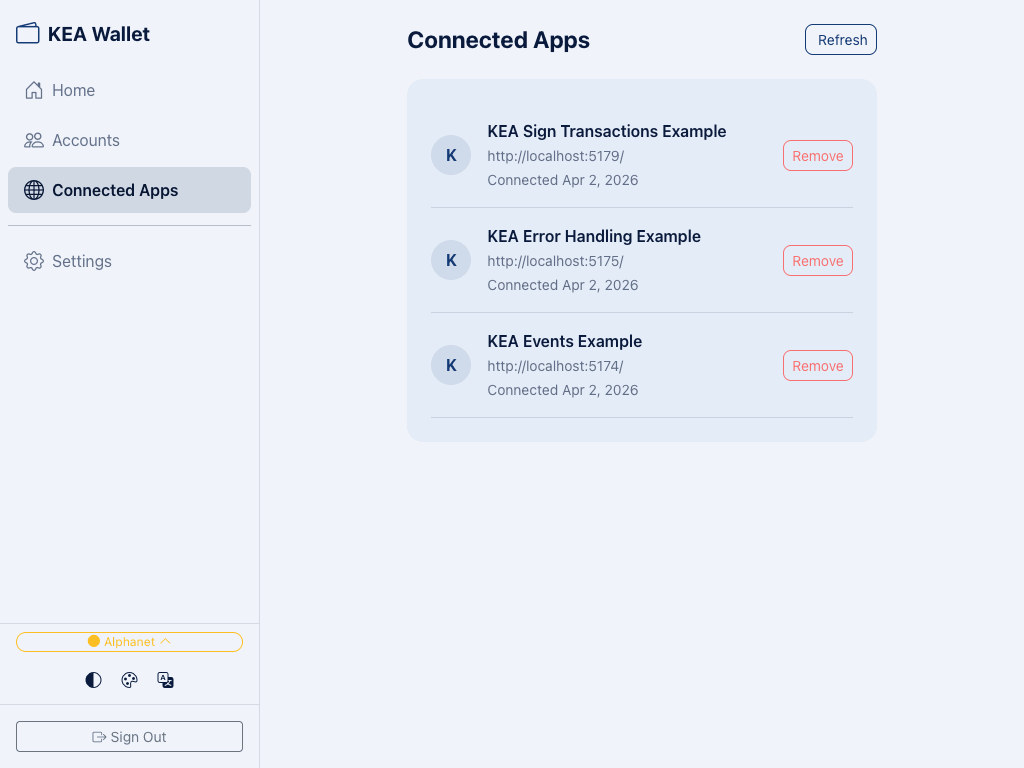
- Each entry displays the app name, URL, and connection date.
- Click Remove to revoke a dApp's access instantly.
- Review this list periodically and remove apps you no longer use.
Best Practices
- Keep your device updated — install OS and browser updates promptly.
- Enable biometric lock — protect your device with fingerprint or face recognition.
- Store your recovery phrase offline — write it on paper and keep it somewhere safe. Never screenshot, email, or share it.
- Review Connected Apps — remove dApps you no longer use.
- Use Auto-Lock Timeout — in Settings, set how long the wallet stays unlocked after inactivity (default: 15 minutes).
- Watch for phishing — KEA Wallet will never ask for your recovery phrase outside of the Restore Wallet flow on keawallet.com. If a site asks you to enter 12 words, it's a scam.